To create a strong password, use a combination of uppercase and lowercase letters, numbers, and special characters. Avoid obvious passwords such as “123456” and choose a unique sequence of characters
How to Stay Safe on Instagram
Kyryl Cherepakhin
Content:
In today’s world of social media, Instagram is one of the most popular platforms for socializing, visual expression, and business activity. However, the rise in popularity also leads to an increased risk of privacy and security breaches for users. In this article, we take a look at the best Instagram security settings to help you protect your account and personal data.
Strong password
Choosing a strong password
The first thing to do is to set a strong password for your account. It should consist of a combination of upper and lowercase letters, numbers, and special characters. Avoid using obvious passwords such as “123456” or “password”.
Using two-step authentication
Instagram gives you the option to enable two-step authentication to further protect your account. This method involves entering a code that is sent to your mobile device in addition to your main password. This makes it harder for attackers to take over your account.

Profile privacy
Account privacy
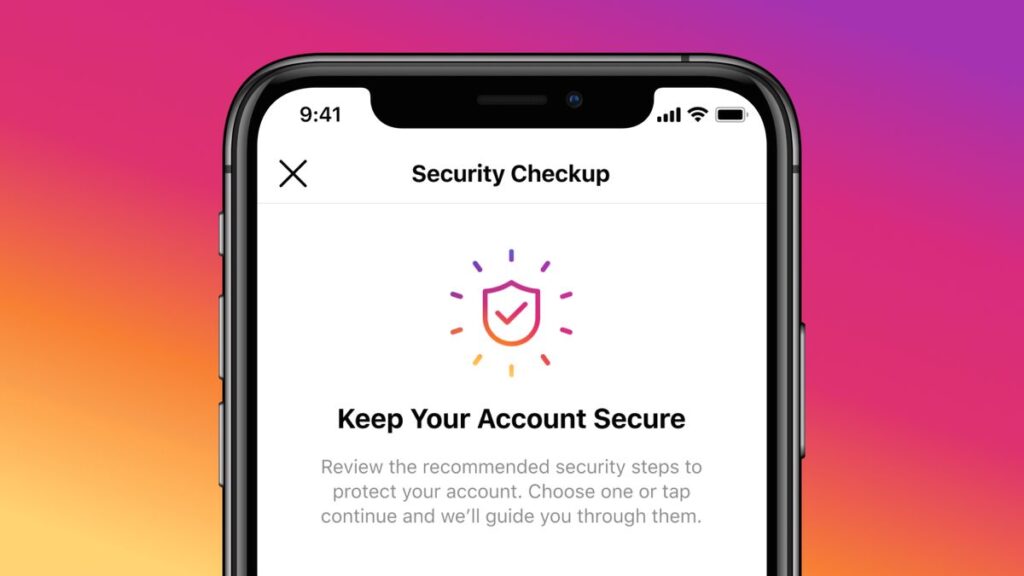
One of the most important aspects of Instagram security is setting up a private account mode. This option allows you to control who can see your posts and other information on your profile. By enabling private mode, you limit access to your posts to your followers only.
To enable private mode, follow these steps:
- Open your profile by tapping the account icon at the bottom of the screen.
- Tap the Three Stripes (menu) icon in the top right corner of the screen.
- Enter settings by scrolling down and tapping “Settings and Privacy”.
- Select “Account Privacy” and then turn on “Private Account”.
Once private mode is enabled, only users who have subscribed to you will be able to see your publications. Subscription requests from strangers will require your consent before they can access your content. This gives you better control over who can follow you and see your activity.
Control over posting
In addition to the private mode, Instagram gives you control over who can comment on your posts and send you messages. This is especially important for the security and convenience of your user experience. You can customize these settings as follows:
- Open any of your publications.
- Click on the three dots above the publication.
- Disable comments
- A “Check controls” button will appear – click it
- Select “Allow comments from…”
- Choose who can comment on your publications and who can send you messages: all users, just your subscribers, or specific users.
This allows you to maintain control over which individuals can interact with your content and how.
Message management
Post Filters
Instagram provides the ability to use filters for posts that contain offensive or objectionable content. You can customize these filters according to your personal preferences and requirements.
Blocking users
If you come across unwanted posts from a particular user, Instagram allows you to block that user. This will prevent him from sending you messages and seeing your content.
Additional security measures
Check for additional permissions
In addition to basic security settings, it’s important to regularly check additional permissions you’ve granted to third-party apps on your Instagram account. These could be photo editing apps, analytics, or other tools. While they can be useful, attackers can also use these permissions to gain access to your account.
Follow these steps to check app permissions:
- Open your profile by tapping the account icon.
- Tap the Three Stripes (menu) icon in the top right corner of the screen.
- Enter settings by scrolling down and tapping “Settings and Privacy”.
- Scroll down and tap “Site Accesses.”
- Review the list of apps you’ve granted permission to and remove the ones you no longer need or recognize.
Updating the app
Updating your Instagram app is an important part of keeping your account secure. Developers regularly improve security measures and fix vulnerabilities. Updating the app is fairly simple:
- Open the app store on your mobile device (App Store for iOS or Google Play for Android).
- Find the Instagram app using search.
- If a newer version is available, tap the “Update” button.
This will help ensure that your app has the latest security measures to help keep your account safe from potential threats.
Always update the Instagram app and don’t give account permissions to third-party apps unnecessarily
Security for children
Children are also active on social media, including Instagram. It is important to keep them safe and protect them from the dangers of the internet.
- Parental Controls. Instagram gives parents the ability to customize control over their children’s accounts. You can set limits on commenting on posts, subscribing to other users, and restrict access to certain types of content.
- Verify subscribers. It is recommended that you work with your children to verify their subscribers and subscriptions. Discuss with them what are safe subscribers and what types of content can be dangerous.
- Conversations about online safety. It’s important to have regular conversations with your kids about online safety. Explain to them how to avoid interacting with strangers, not sharing personal information, and reporting any unwanted situations to you.
- Use of hashtags. Explain to children the importance of using hashtags carefully. Some hashtags can lead to unwanted interactions with strangers or display their content in a dangerous context.
- Danger Communication. Teach children to recognize signs of danger in the online environment. If they receive unwanted or offensive messages, they should report it to you or other adults.
- Collaborative activity. Explore safe account settings with your children together. Together, they can explore how to limit access to their content and keep them safe in the online world.
Conclusion
In this article, we’ve taken an in-depth look at the optimal Instagram security settings. By utilizing a strong password, two-step authentication, private account mode, control over posting and messaging, and additional security measures, you can effectively protect your account and personal information. Remember to regularly check and update your security settings to ensure the stability and reliability of your account.
FAQ
Question 1: How do I choose a strong password for my account?
A: It is recommended that you use a combination of upper and lower case letters, numbers, and special characters to choose a strong password. Avoid obvious passwords such as “123456” and create a unique password that consists of hard-to-guess characters.
Question 2: How does two-step authentication work on Instagram?
A: Two-step authentication (2FA) is an additional layer of protection that requires you to enter an additional code after your main password. The code can be sent to your mobile device via SMS or generated by a special app. This makes it difficult to access your account even if the attacker already knows your password.
Question 3: How do I set my account to private?
A: To set your Instagram account to private mode, go to your profile settings. There, you will find the “Private account” option. After enabling it, only your followers will be able to see your posts, and other users will need your consent to subscribe.
Question 4: What additional security measures can I take to protect my account?
A: Additional security measures include checking permissions for apps that you have granted access to your account. Regularly update your Instagram app to the latest version to get new security measures. You should also avoid opening links from unknown sources and pay close attention to messages from unfamiliar users.
Question 5: How can I block nasty messages sent to me?
A: To block a user who sends you nasty messages, go to their profile and click the block icon. This will prevent the user from sending you messages and viewing your content.
Was the article helpful?
👍
Yes - 2
👎
Not - 0
Comments: